A gym holds walls. If your gym is already in Beeboard, join it instead (chapter 1).
Start a gym
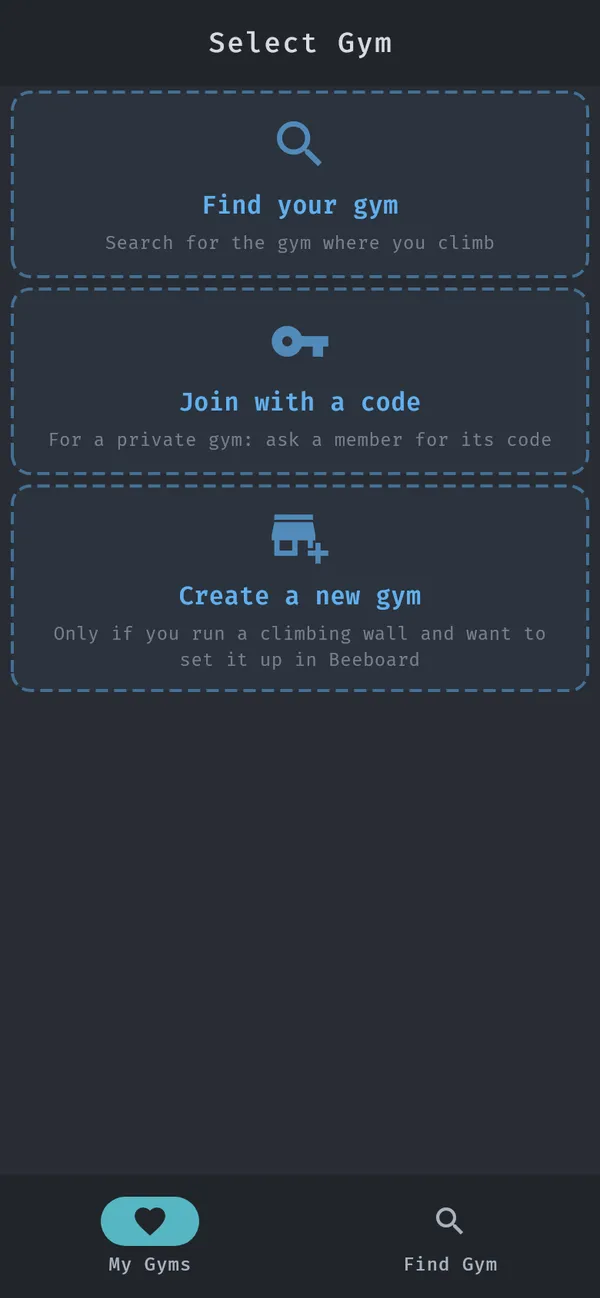
On the home screen tap Climb, then Create a new gym. Once you have a gym the card is called Create New Gym.
Name and privacy
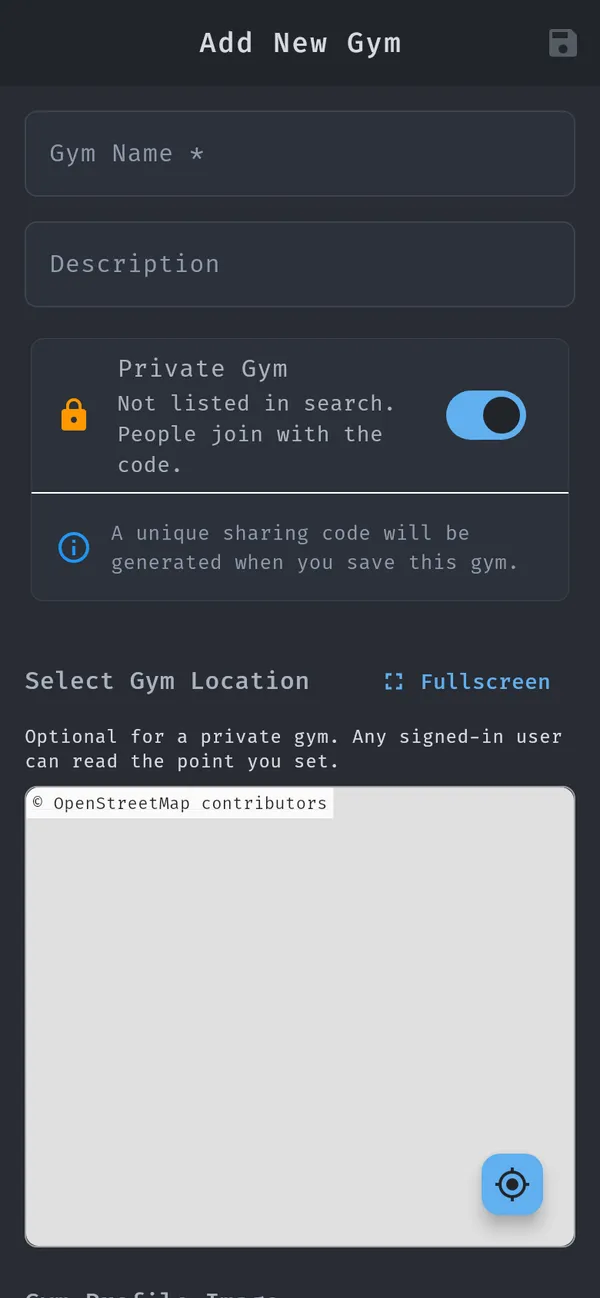
Enter the Gym Name and, if you like, a Description.
Private Gym is on at first: the gym is not listed in search, and people join with its code. Turned off, it is listed in search and shown on the public map at the pin you set.
Location, photo and admins
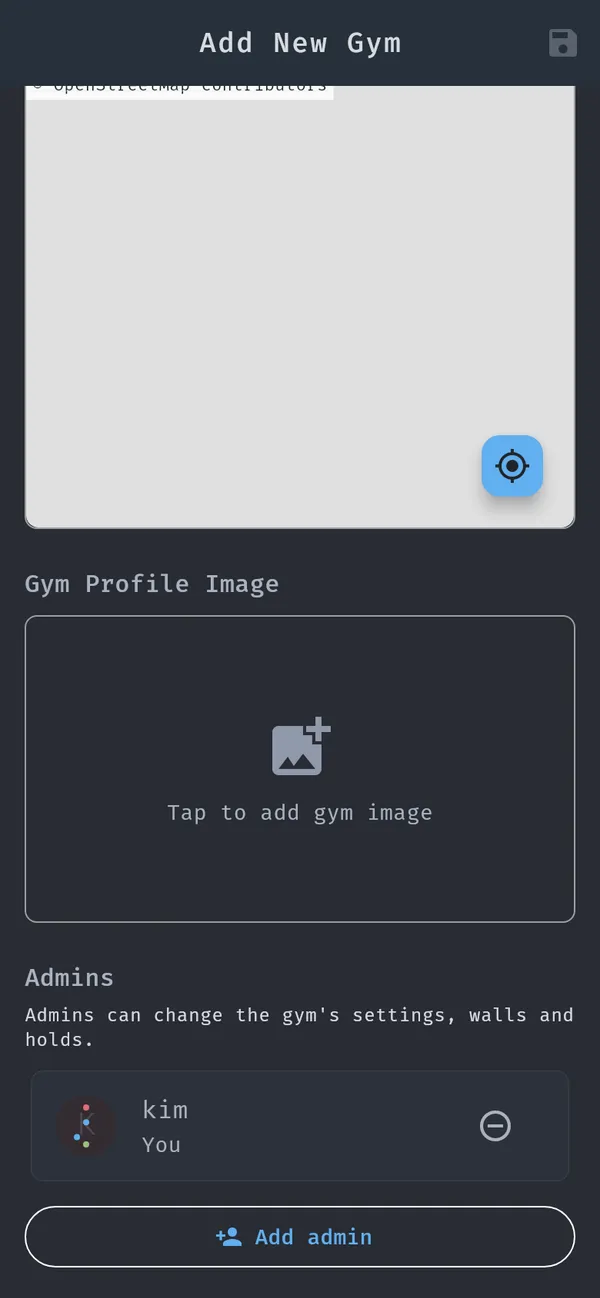
Under Select Gym Location, tap the map where the gym is. A public gym needs the pin; for a private gym it is optional. Any signed-in user can read the point you set.
Add a photo under Gym Profile Image. The gym cannot be saved without one.
You are the first admin. Add admin adds more.
Save
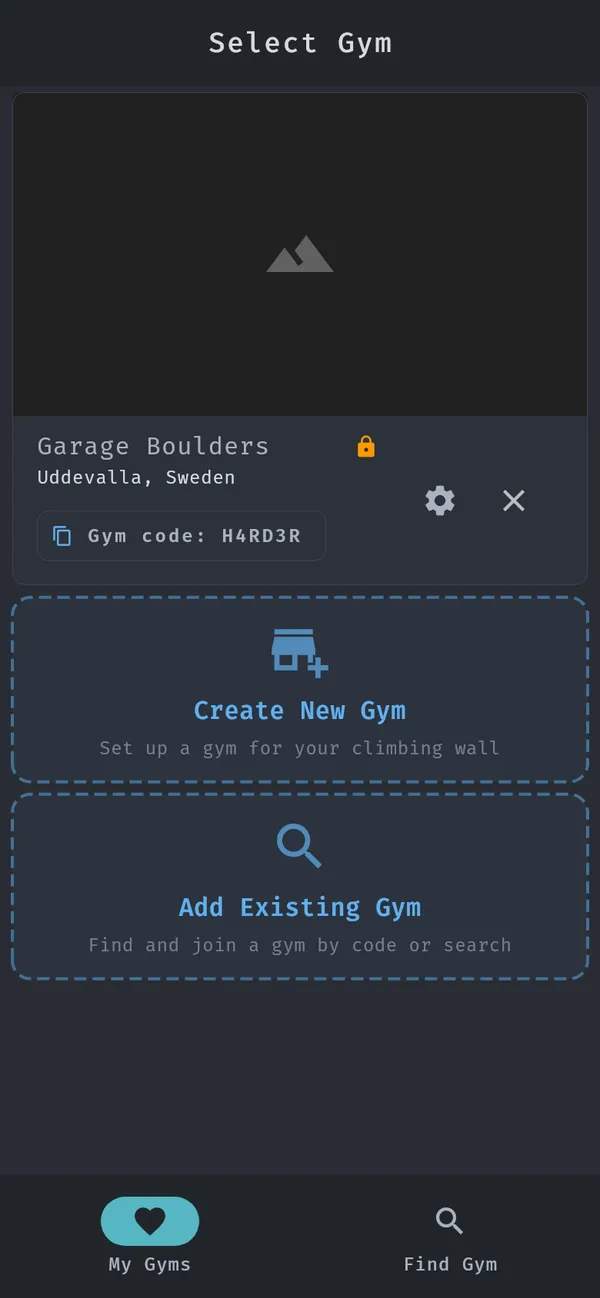
Tap the save icon at the top. The gym gets a code to share and is in My Gyms. The gear on its card opens the gym’s settings (chapter 11).
Add the first wall
Tap the gym. Its page has the tabs Walls, Feed and Leaderboard. A new gym says No walls added: tap Add First Wall and go on to Add a wall.
Private does not hide the walls and problems from other Beeboard users.