Only a gym’s admins can add walls. The gym’s creator is its first admin.
Name and lights
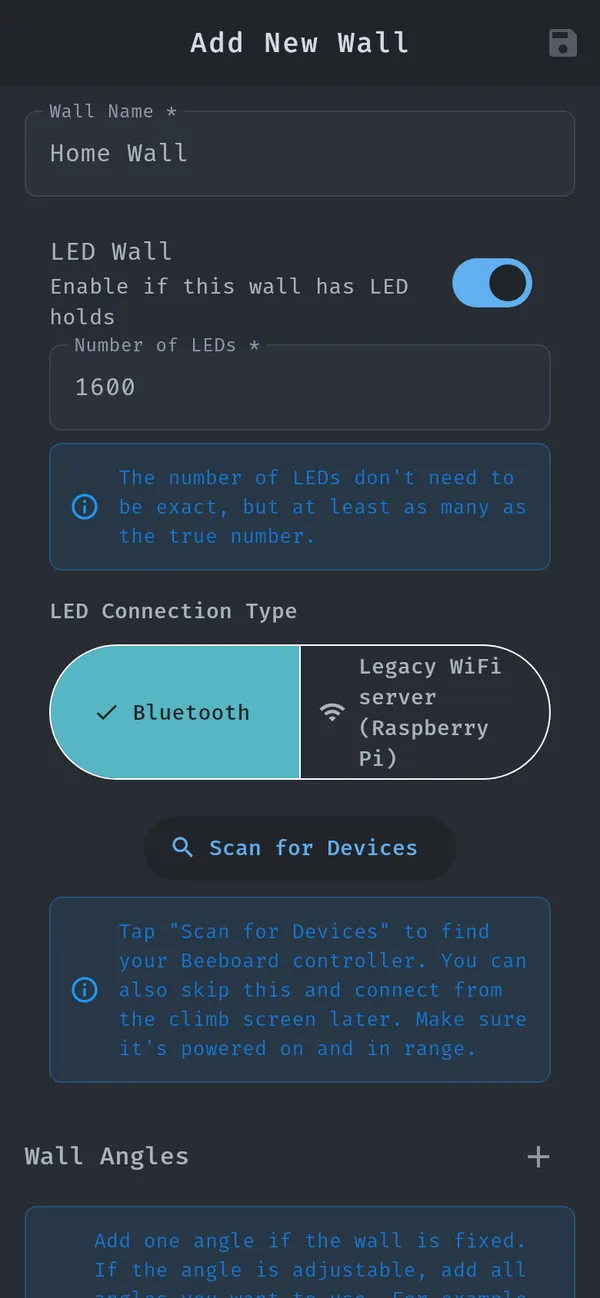
In the gym’s Walls tab, tap Add First Wall, or later the Add New Wall card. Enter the Wall Name.
If the wall has lights, turn on LED Wall and enter the Number of LEDs. It need not be exact, but at least as many as there are. Leave Bluetooth chosen. You can pick the controller now with Scan for Devices, or skip it and connect later (next chapter).
Angles and photo
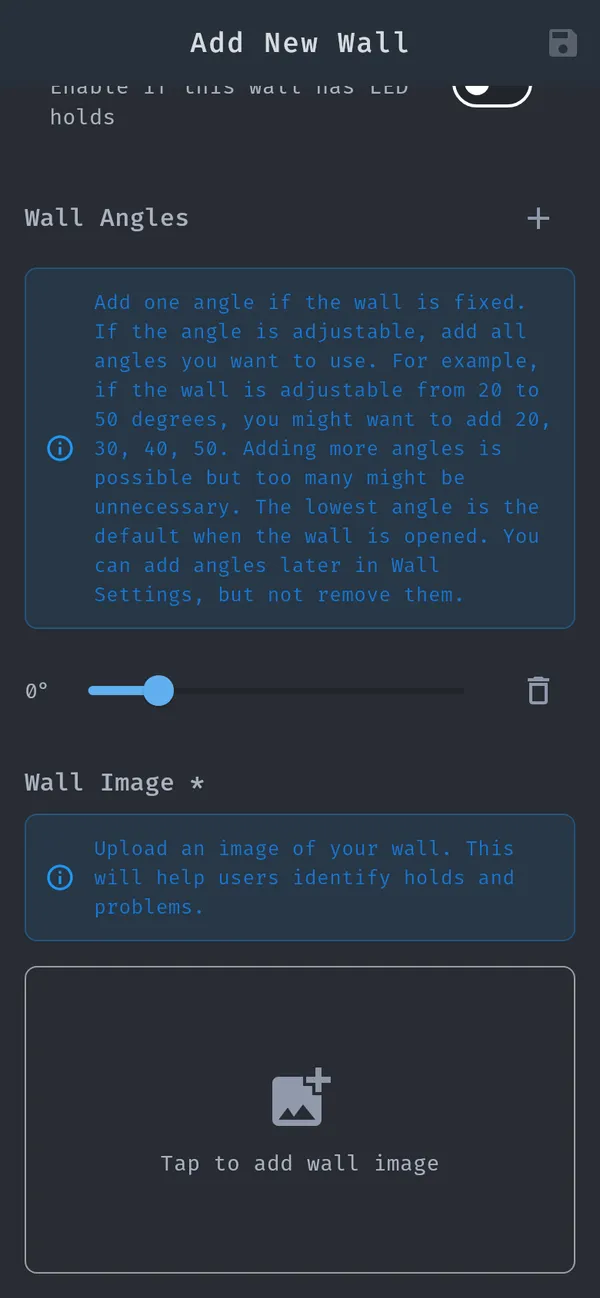
Under Wall Angles, add one angle for a fixed wall, or each angle you use on an adjustable one. Every angle has its own grades. The lowest is the default. Angles can be added later but not removed.
Add the photo under Wall Image: climbers see the holds on it. Tap the save icon.
Mark the holds
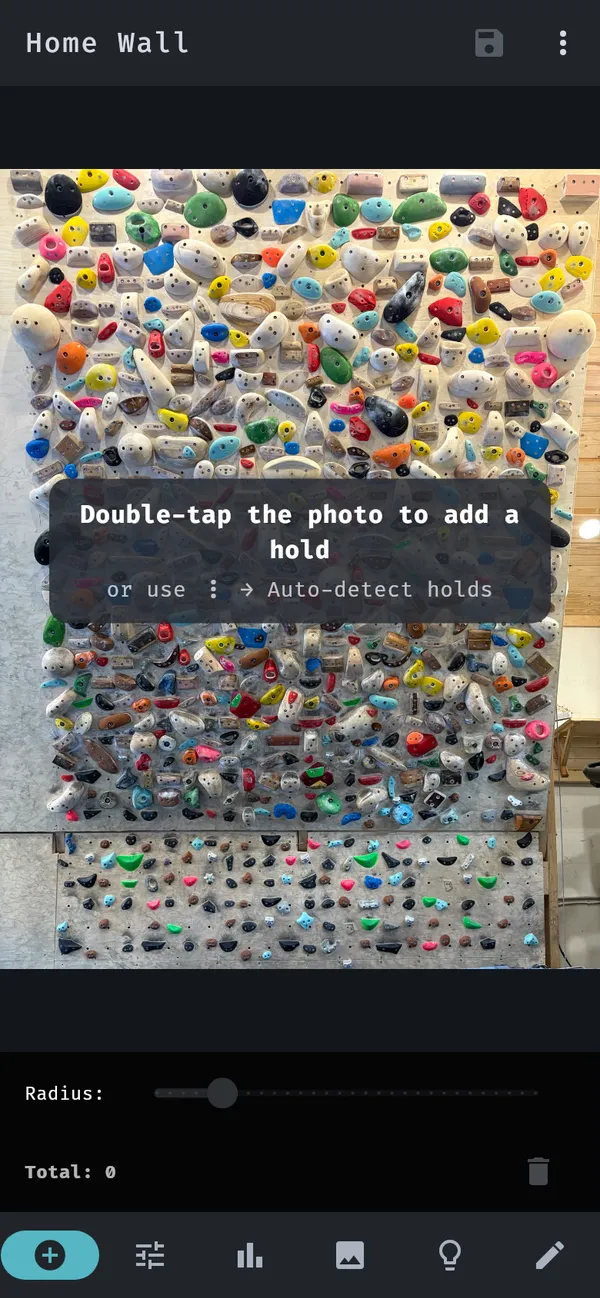
After saving, the hold editor opens on the photo. Double-tap the photo at each hold. Tap a hold to select it; the bin deletes it.
Or let the app find them
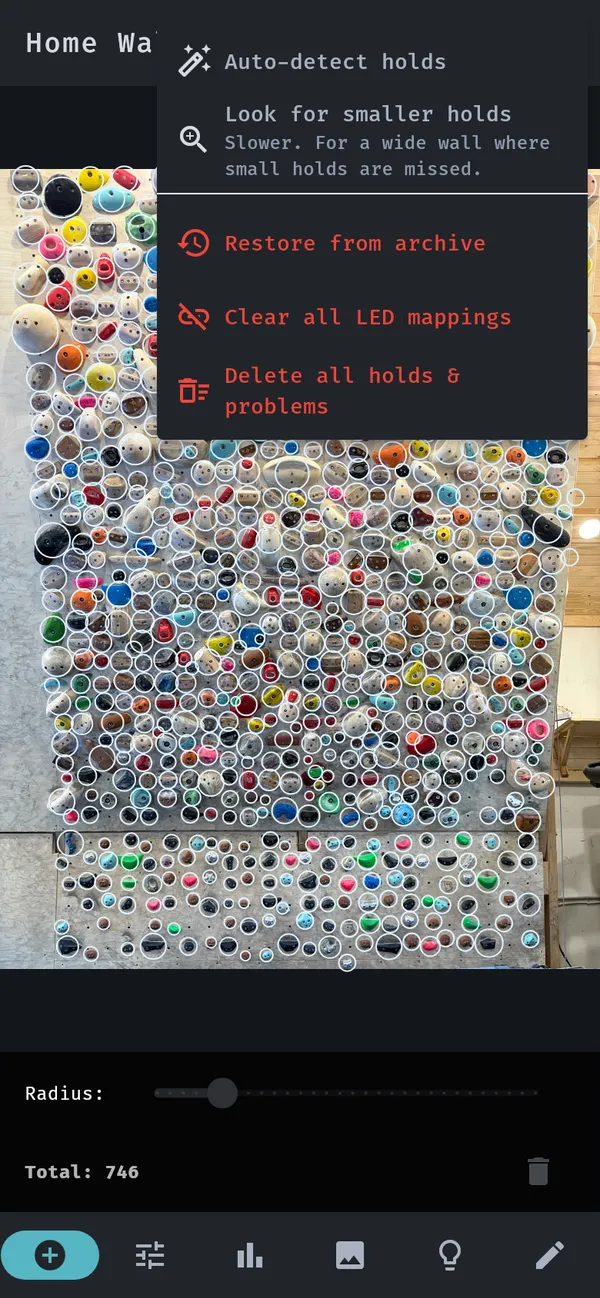
In the ⋮ menu, Auto-detect holds looks for holds on the photo and shows what it found. Set the Confidence threshold and add them. Then add what it missed and delete what is not a hold. Look for smaller holds is slower, for a wide wall. Not every phone can run it.
Save
Tap the save icon. The Properties tab sets each hold’s type, direction and difficulty. Later, the gear next to the wall in the gym opens the editor again.