For a wall with LEDs and a Beeboard controller. Wiring them is in the installation guide.
The wall's controller
Open the hold editor (the gear next to the wall) and its last tab, Settings. Under LED Connection Type, choose Bluetooth. With the controller on and near you, tap Scan for Devices and pick it, if the wall does not name one yet. Tap the save icon.
Idle animation sets what the wall shows when nobody is using it.
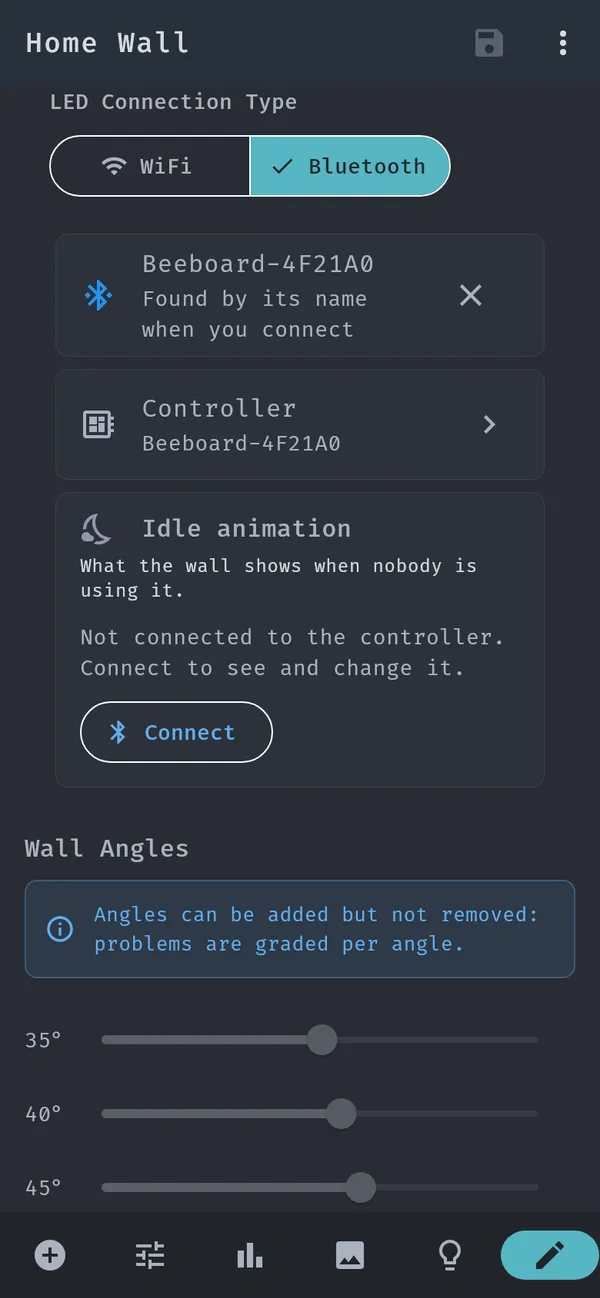
Assigned by Beeboard
The Controller row opens the controller’s own screen. For now Beeboard assigns controllers to walls: until yours is, it says Not assigned. Contact us to have it assigned. Blink LEDs blinks the first LED of each line, so you know which controller you are connected to.
The LED type, colour order and power limit are set at installation by Beeboard. An admin can change the brightness cap.
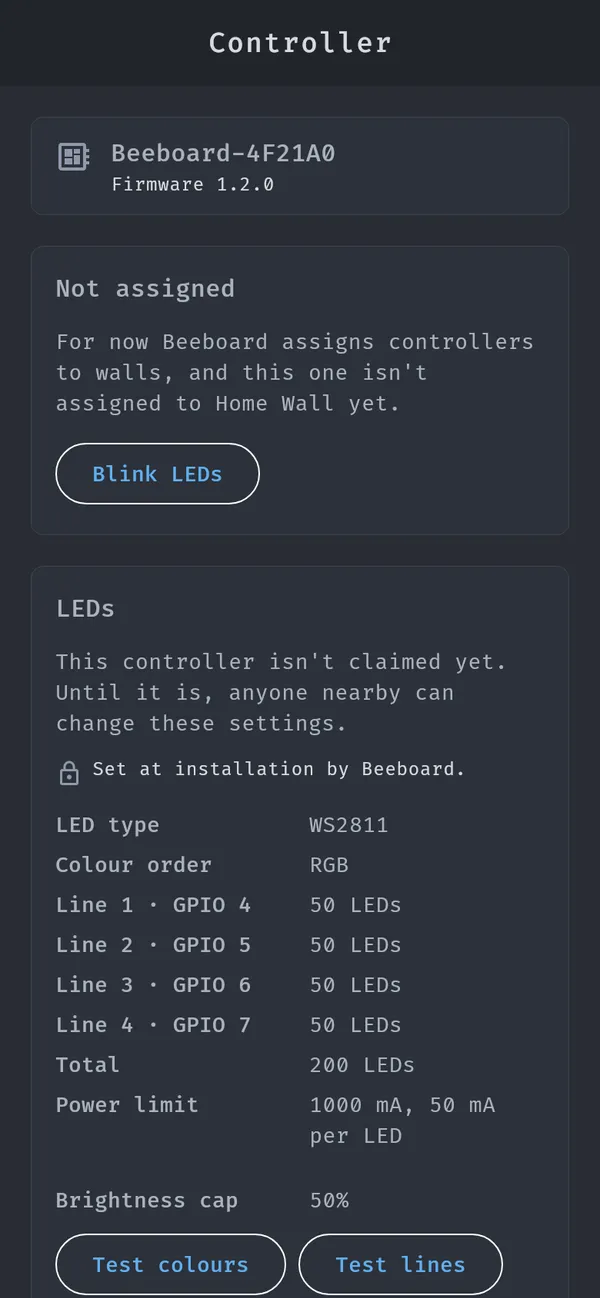
Give each hold its LED
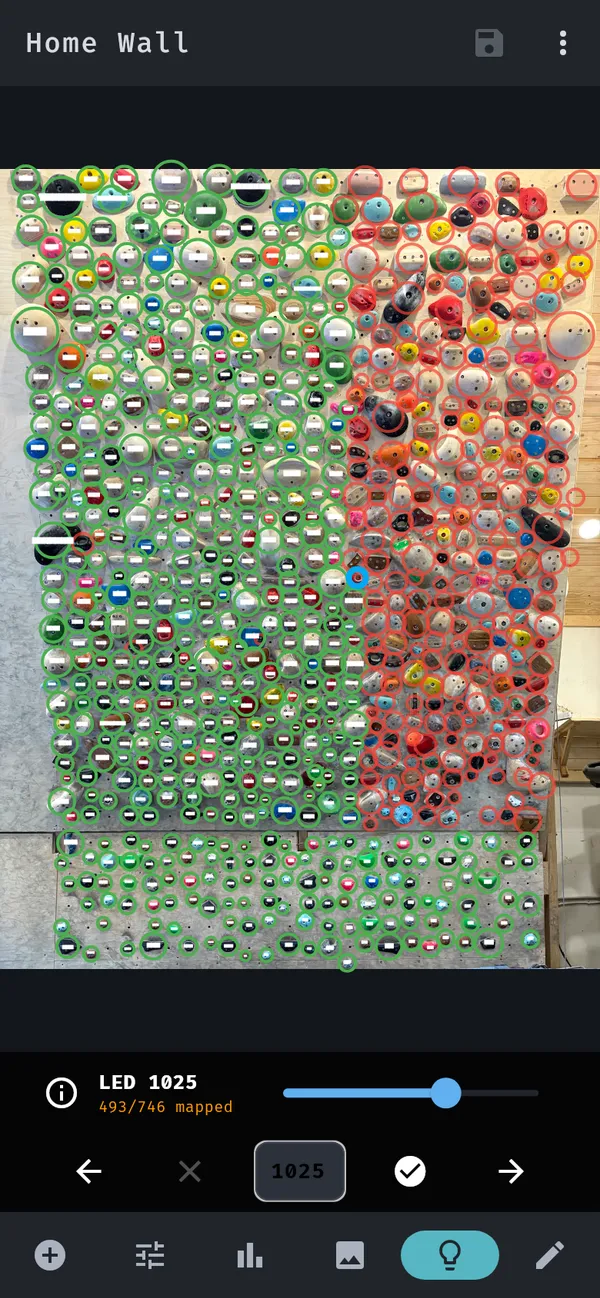
In the LEDs tab (the bulb), step to an LED with the arrows, the slider or the number, and see which hold lights up on the wall. Tap that hold on the photo, then the check button. A hold with an LED is green with its number, a hold without one is red, and the selected hold is light blue. The count shows how many holds have an LED. Tap the save icon when you are done.
Climb
On the climb screen, tap connect and then light up. The problem’s holds light up on the wall.
If the app does not find the controller: check that the wall has power (the first LEDs flash green, then a blue light runs along the wall), that Bluetooth is on, and that you are near the wall. Then switch the wall off and on.