Chapter 3 of 12

Lists, favourites and the jam

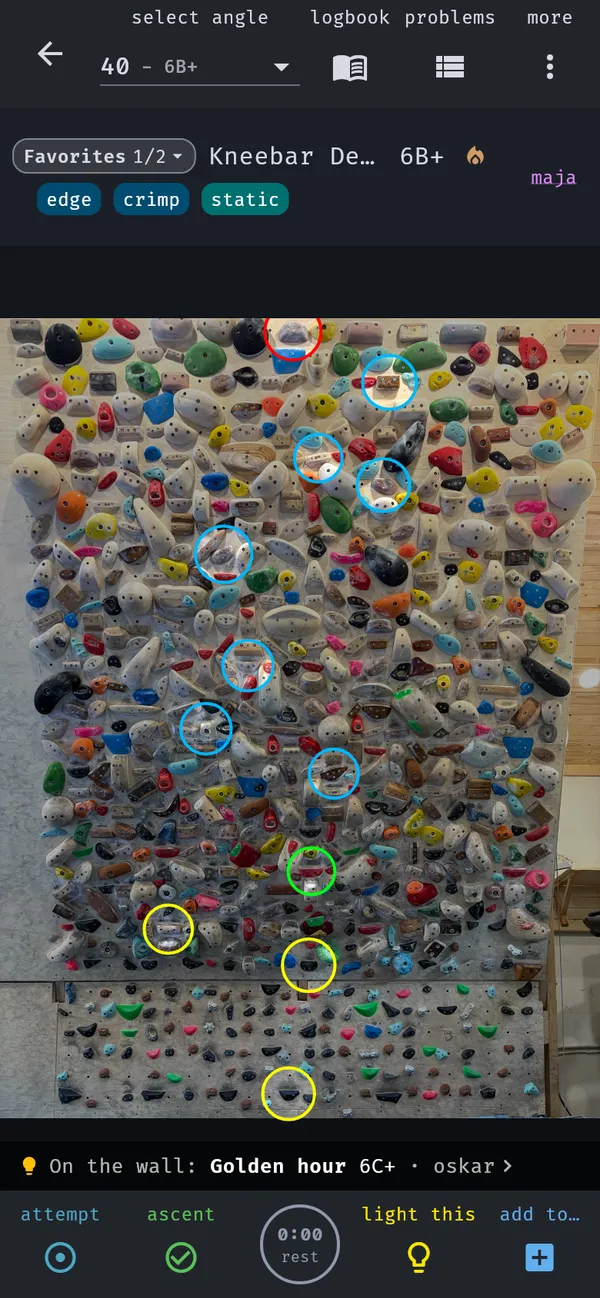
add to… in the bottom bar opens Add to jam, Add to favorites and Lists…. Its icon is filled when the problem is in your favourites, in one of your lists or in the jam.

Tap the chip before the problem’s name to choose what you swipe through: All problems, Favorites, one of your lists, or the Jam.

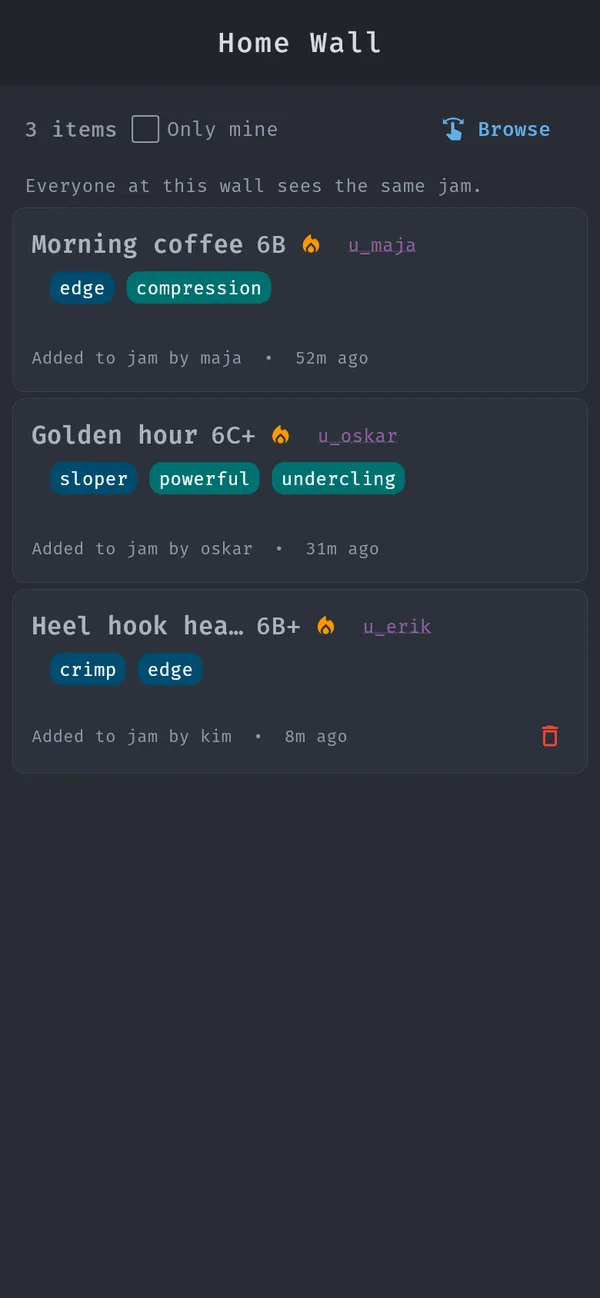
The jam is one shared list for each wall. Everyone at the wall sees the same jam, and a problem leaves it a day after it was added. To see it, tap problems in the top bar and open the Jam tab. Browse there swipes through it on the climb screen. The jam needs an internet connection.
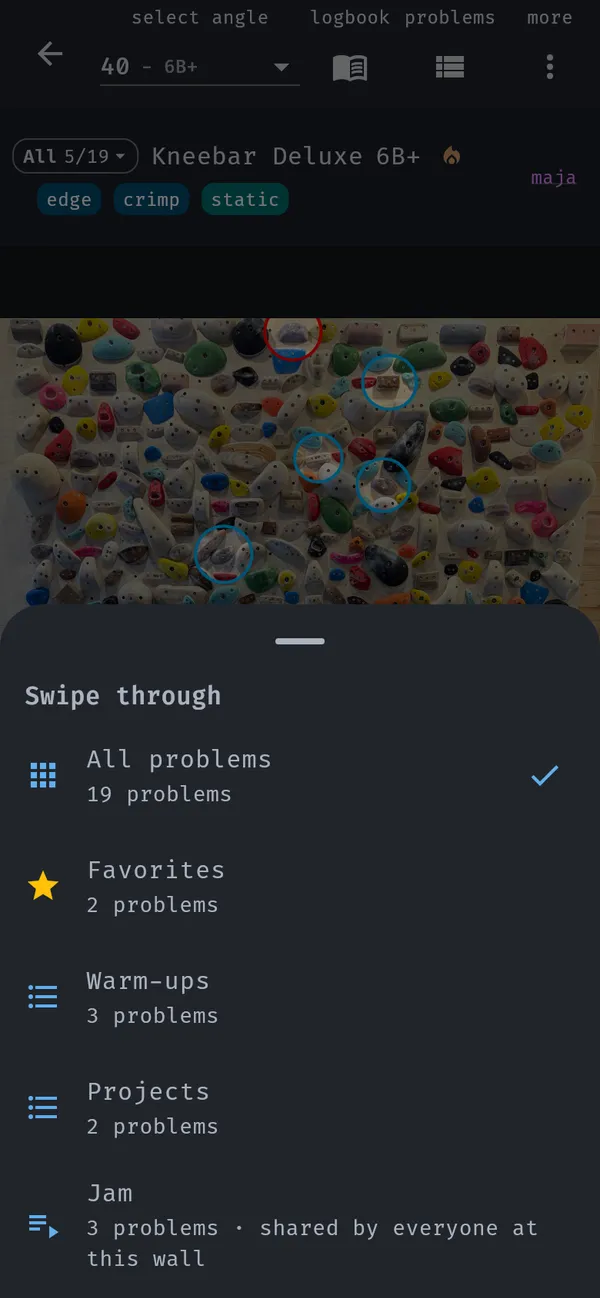
The Swipe through sheet over the climb screen, listing All problems, Favorites, two lists called Warm-ups and Projects, and Jam, each with its number of problems.
Tap the chip to choose what you swipe through.
The climb screen browsing Favorites, 1 of 2. The add to icon in the bottom bar is filled, and a line above the bar reads: On the wall: Golden hour 6C+, oskar.
Browsing Favorites. The filled icon means the problem is saved.
The Jam tab of the list: three problems, each with who added it to the jam and how long ago, a Browse button and an Only mine checkbox.
The wall's jam.